3 Ocak 2013 Perşembe

54 Resources for Civics Teachers

To contact us Click HERE
THE CONSTITUTION
Resources

The Bill of Rights

Celebrate Bill of Rights Day- list of resources

Congress for Kids: The Constitution

The Constitution- from Ben's Guide to Government

Constitution Clips- from C-Span Classroom; register on the site for free

The Constitution for Grades 4-7

The Constitution for Grades 8-12

Constitution Day Lessons  and Resources- Education World

The Constitution of the United States


Mr. Donn's Government Resources


The Signers of the Constitution- from the National Archives

Interactive Games
The Bill of Rights Game- interactive

Constitution Duel- interactive game; knowledge duel

The Constitutional Convention of 1787- interactive game

Constitution Relay Game

The First Amendment Game- interactive

Interactive Constitution

Life Without the Bill of Rights-interactive game
 
Lesson Plans
The Constitution: Drafting a More Perfect Union- from the Library of Congress; grades 9-12

Constitution Lesson Plans- by grade level (all covered)

Constitution Day Lesson Plan- from iCivics

It's My Right- grades 6-8

No Time for Tea- grades 3-5

Private v. Public Rights- grades 9-12

Teaching Six Big Ideas in the Constitution- from the National Archives
 
We the People- lesson plan from Discovery Education
.........................................

U.S. GOVERNMENT
Resources
Ben's Guide to Government for Kids- by grade level; resources for teachers

Congress for Kids

The Executive Branch 

Government Resources- from the Library of Congress' Thomas

How Does Government Affect Me?- from PBS' The Democracy Project

Legislative Branch

NeoK12- different grade level videos

United States House of Representitives

United States Senate

The White House Official Site

Interactive Games
Activate- campaign for an issue

Branches of Government

Cast Your Vote- choose questions for your candidates to debate

Immigration Nation- guide newcomers to citizenship

Supreme Court History Interactives- nine interactives for high school students

U.S. Government Games and Activities- for younger kids

We The Jury- iCivics has provided many interactive games

Lesson Plans
Civics and Government Lesson Plans- from the Library of Congress

Foundations of Government- from iCivics

Government Lesson Plans- from Kids.gov

How Our Laws are Made- terrific infographic

TeacherVision's Lesson Plans on Government

TeAchnology's Government Lesson Plans

Three Branches of Government: Interactive Teaching Unit- grades 5-8

Civics Clip Art
Google Image Search- large images for printing

Scholastic- 22 images

You Don't Need to be exquisite But Your Writing Does

To contact us Click HERE

Having written since I was a kid, I've met many authors, writers and journalists along the way. While we don't all fit the stereotype of the robed, sleepless, alcoholic writer hunched over a typewriter in the attic, we do have much in common. In expanding to being the winners of spelling bees and hoarders of dictionaries and other books, we love words. We love to read them, hear them, speak them and write them. We love them to a fault.

We must have the right words in the right place at the right time. And, possibly more importantly, they must be written flawlessly. We won't accept typos, spelling errors or grammatical snafus, because mistakes interrupt the flow and the meaning of our words. As a result, we expect perfection and we don't tolerate errors from ourselves or others. This religious doctrine makes it difficult to be a writer at times, but we can't help ourselves. We are obsessed with perfection.

Apa Format Example Paper

Living this way can make it difficult to meet deadlines, however, as we await the ideal word, headline or first paragraph. Sometimes we must settle for less. Sometimes we even have to settle for pretty good. It's a harsh reality, but at some point, we have to unblemished our latest assignment or task and turn it in so we can get paid. We have to let go of the perfection we covet, because it isn't going to bless us with its presence today.

You Don't Need to be exquisite But Your Writing Does

MLA Handbook for Writers of Research Papers Best

Rate This Product :


MLA Handbook for Writers of Research Papers Feature

  • ISBN13: 9780873529860
  • Condition: USED - Very Good
  • Notes: 100% Satisfaction Guarantee. Tracking provided on most orders. Buy with Confidence! Millions of books sold!

MLA Handbook for Writers of Research Papers Overview

The MLA Handbook is published by the Modern Language Association, the authority on MLA documentation style. Widely adopted in high schools, colleges, and publishing houses, the MLA Handbook treats every aspect of research writing, from selecting a topic to submitting the completed paper. The expanded, revised, and redesigned sixth edition of the Handbook is a complete, up-to-date guide to documentation style and online research.


Customer Reviews


*** Product Information and Prices Stored: Feb 26, 2012 14:47:20

Our editors, however, see it differently. They will expect perfection, not because they are masochists but because it makes their jobs easier. If our work is flawless, they have less to do. They can focus on other writer's work or planning their next issue or project. To endear ourselves to them (and to get more work), we must dutifully comply. The issue is trying to equilibrium our desire to be perfect with the reality that we will never be. We can come close though by thought about proofreading, editing and fact-checking our work prior to submission. Here's how.

Proofreading-checking for spelling, punctuation, grammatical and formatting errors-can be a tedious, cumbersome task, particularly when attempting to proof your own work, but it can be done. I normally proofread on my computer screen first, development edits as I go. When done, I print off a hard copy and go straight through line by line, reading out loud as I go. I find that I observation errors in print that I don't see on screen, and reading out loud helps me to find words that I've missed or used incorrectly (e.g., there instead of their). For well important assignments, I'll ask person else to proof it as well. In fact, I have an editing buddy with whom I trade proofreading help. I have also tried reviewing the copy backwards and reviewing for a separate item while each pass straight through the text. For example, the first time I read straight through it, I might focus on spelling, the next time on grammar, etc. Make sure you have your dictionary and grammar guide handy too while this stage.

Editing. In expanding to proofreading, I also copyedit my work, meaning I check for misplaced modifiers, tell style, check for flow, etc. This process is more intense than proofreading and can take awhile. It is also difficult to do immediately after finishing an assignment, so I will set it aside until morning when I can look at it with "fresh eyes." Often major errors will jump off the page, begging to be corrected. while this phase, you'll need to have your handy stylebook out (Ap, Apa, Chicago by hand of Style, etc.) to be sure that you've followed the accepted guidelines for things like capitalization, numbers (figures versus text) and references.

Fact-checking. Many publications, particularly magazines, will fact-check your work. In other words, they'll verify the spelling of allowable names, check dates, key facts, website addresses, phone numbers and more. While publications often hire person to do this task, by doing it yourself first, you can save the publication time and money, again development it easier to work with you. When I fact-check my writing, I first double-check the spelling of all names and places. I look at reference materials (brochures, bios, enterprise cards, etc.) that I've been given, and I search online. If I am unsure, I'll phone the traditional source to confirm a spelling. I do the same thing with dates. For key facts, I do an Internet search, marking my source to either contribute to the fact-checker up front or for my own reference should I be questioned later. This was particularly helpful when I wrote an description about a coal mine explosion in the early 1900s. My editor wanted to confirm that a single mining town was second in size only to Seattle. Before she was willing to allow me to make that statement, she wanted verification.

In spite of these techniques, we are human and it is still possible that an error will occasionally slip straight through the cracks. However, if you are diligent in your effort to submit well-written, well-documented work without definite errors, your editors and publishers will be more likely to turn to you rather than the other guy - you know who I mean - the writer who thinks he's great but who can't spell his way out of a paper bag. Make sure you are the one they turn to for stellar, (nearly) flawless work.

Happy Writing!

Copyright (c) 2007 Dana Blozis

You Don't Need to be exquisite But Your Writing Does

Newtown - Sandy Hook Elementary

To contact us Click HERE


Friday was a shocking day. I was at one of our elementary schools working with a principal on some technology ideas when we started to get the news about the shooting at Sandy Hook Elementary, just 15 miles north of us. We were shocked and saddened even without knowing any details. Staff members live in that town and were trying to get more information about their own children.

As the day and weekend progressed and more information was released, things got worse. One of the students killed was the daughter of a teacher in our district. One of the hero teachers, Vicki Soto, was someone I had known when she was younger. She was a member of the EMS Explorer post at the EMS service I was a paramedic at and I had worked with her and the other Explorers many times. I know many of the first responders, having either worked with them as a paramedic or trained them. I've worked some very bad calls, including the death of a child, but I can not even begin to imagine what they are going through.

Newtown is a great town that my wife and I love. It's beautiful and quintessential New England. We go there a lot to go shopping, have some great pizza, and have ice cream at a dairy farm. It's a town that we have been considering to buy a house in, and still will.

It's been a rough few days. I can only hope that all those affected can find peace and comfort.


Evernote Skitch meeets Windows to create a great, easy to use screen capture and image editing service.

To contact us Click HERE

skitch screen captureEvernote, the app I talk about way too much, has some other great apps that work with it. Skitch is one of them. Skitch is a free image editing and screen capture app that has been on mobile devices for a while and is now, finally, on Windows.

It is easy to use, has enough features for most users, and is free. Hard to beat that. You can use it to take screen captures, annotate images, and it integrates with Evernote.

Teachers can use it to capture and annotate images for students, professional development, e-portfolios, etc. and students can use it for class projects.

It is available for iOS, Android, Mac, Windows, and Windows 8.

Learn more at the source page below.

Source: Evernote Skitch website


Technology I'm using daily as a School District CIO

To contact us Click HERE

This past November I started a new chapter in my career and became the Chief Information Officer (CIO) for the district I was a teacher in for 10 years. It combines my experience as a teacher and educational technology specialist, as well as my 10 years as an engineer and project manager, into one very exciting, busy, crazy, rewarding job. I am responsible for the IT department, as well as coordinating with the data teams and all technology issues and projects.

In the past, I've written about the technology I used on a daily basis as a teacher. Today, I want to write about the technology I'm using on a daily basis in my job as CIO and how this technology helps keep me organized, informed, and communicating with others. Some of it is the same, some different, and some just used differently.


Evernote - Evernote, an electronic notebook with lots of great features, is my main tool. I have used it for lesson plans, lesson notes, lesson resources as a teacher and travel info, recipes, clippings from web sites, to do lists, personal references, tech resources and instructions and so much more. It is the main app I use for almost everything. 

As CIO, I have created multiple notebooks. They are each named CIO and then the specific notebook title and all stacked under CIO as a main category. I have a note entitled "Priorities" that I update each week. It has a list of the major tasks and projects that I need to work on that week. I don't keep much for details in this note, rather I put the link to other notes that have all of the details on them. 
I also upload files as attachments to Evernote so that I can easily access them anywhere, on any device. Files that I have to edit often are stored on our servers and I can access them remotely via VPN client. 
I also use the Clip to Evernote extension for Chrome (my browser of choice) to clip web articles for future reference. 
Another great feature is the Outlook to Evernote extension. I use Outlook for email, contacts, and calendar, and can export any email or contact from Outlook to Evernote, including attachments. This keeps my email less cluttered and allows me easier access to the emails and files from other devices. 
I use Evernote to take notes in meetings also, either with my smartphone, Chromebook or laptop, or using my Livescribe Sky pen to take handwritten notes (I'm faster that way) and have them synced directly to Evernote. 
I use the Evernote desktop app at home and at work due to the advanced features and local backup of data. I have a premium account (only $45 per year), although many people would be fine with the free account. 


Dropbox - Dropbox is a great file sync, backup, and sharing service that you can use for free. The rest of the files I need to use that are not in Evernote or Google Drive are setup in my Dropbox so that they are synced on my home computer and my smartphone. I can access my files from any web browser also. I never have to worry about losing a flash drive or forgetting to copy or email myself a file.



Google Chrome is my browser of choice. It's fast, secure, easy to use, has great extensions and bookmarklets, and just works great. I have it automatically open up my most used tabs: Gmail, Google Calendar, Blogger, Tweetdeck, and Evernote. I also have bookmarklets for saving pages into my Google Bookmarks, accessing school systems, and much more.

Extensions:
Evernote Clipper - clip web pages and articles into my Evernote notebooks for reference or sharing with students.
Goo.gl URL Shortener - shorten web page URL's for better sharing and tracking of sharing.
Webpage Screenshot - take screenshots of web pages, edit and format them, and save them.
Evernote Clearly - clean up a web page for easier reading and clipping.


Google Apps - I use Google's many apps, including Gmail, Blogger, Calendar, Docs/Drive and Reader for myself and as part of my daily job. We are also going to Google Apps for Education for our students and faculty along with Chromebooks for different groups.


I use Tweetdeck in Chrome browser to access my PLN on Twitter. It is easy to use and has great features like multiple columns and scheduling of tweets. It's a great way for me to connect with other CIO's and Technology Directors for help and advice.


Android Smartphone - with my Android Smartphone, I can access all of my materials and resources, all of the apps and resources listed above and even control my computer with SplasthTop Remote.Android works great with all of the Google resources I use, and the Evernote app for it is awesome. This allows me to access meeting notes, files, and much more anywhere I go. Very handy as I travel the district for meetings and working with staff on technology projects.


Livescribe Sky Smartpen - This job entails a lot of meetings, issues, and challenges. One way I have been able to keep up with things is through my Livescribe Sky WiFi Smartpen. With this smartpen, I'm able to take notes in meetings on paper, which is very efficient, especially with my note taking style, which incorporates sketches, symbols, arrows, and more that don't translate well with a keyboard. The smartpen saves all of my notes and syncs them to Evernote over WiFi. This means that all of my notes are stored inEvernote so that I can access them anywhere. They are even searchable. I can also record audio in important or fast moving meetings to make sure I don't miss anything.


Outlook icon

Microsoft Outlook - As a teacher, we all used the web version of Outlook. Administration and office staff use the desktop version of Outlook because we utilize more features. Email management, calendar and meeting schedules, contacts, and more. The full version of Outlook also has the Evernote extension so I can save emails, attachments, and contacts right to Evernote. 


Brookstone Boogie Board -  a paperless notepad. It is small, thin and lightweight. You write on it using the stylus, or even your finger. It has sealed battery that lasts for 50,000 erasures. I figure 50,000 erasures will last about 20 years or so. It only uses power to clear the screen. I use this as my scratch pad on my desk to take quick notes with before adding them to Evernote or doing that task.


I also use some other systems, such as Tack-IT for our Help Desk, and our budget and purchase order system. For hardware, I have an HP desktop workstation, HP laptop, Chromebook (Samsung 303) and my smartphone and Livescribe SkyPen. 
So, that's what I use each day in my role as CIO. These technologies allow me to be organized and easily access all of the data and information that I need to access each day, as well as communicate with my staff and other personnel. 

What technology do you use each day in your job?


2 Ocak 2013 Çarşamba

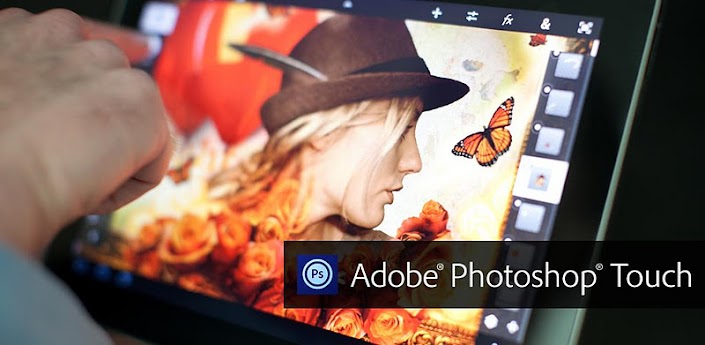
Adobe Photoshop Touch Updated for 7 Inch Devices

To contact us Click HERE

Adobe® Photoshop® Touch
Adobe Photoshop Touch is a great app for tablets and smartphones that I wrote about before. It has just been updated for 7 inch devices like the Nexus 7, Kindle Fire and iPad mini.

This is a great app for students and educators to use for photo editing and effects and now it is available for the smaller tablets. I happen to love my Nexus 7 and the 7 inch table size, so I'm very happy. The app is $9.99.


Take a look at more information about Adobe Photoshop Touch.


Happy Holidays - Most Read Posts of 2012

To contact us Click HERE

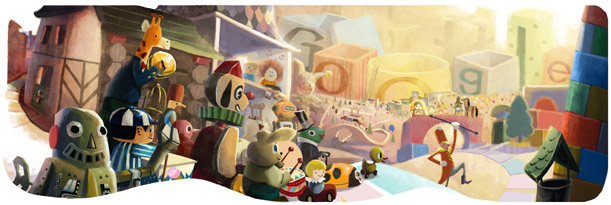
Happy Holidays from Google!image from Google.com homepage 
Happy Holidays and Merry Christmas from Connecticut. I'm finishing up my day at work today with a quick post of the Most Read Posts of 2012. It's been an interesting year for me, as I started a new job as the Chief Information Officer for our district. It's a rewarding and challenging job that I love.

Tonight we head to friends' for Christmas Eve and then off to my cousins' tomorrow with the whole family.

I want to wish all of my readers Happy Holidays and Happy New Year. In this time of joy and celebration, please keep those less fortunate in mind, and please remember the 26 we lost in Newtown, and also the 2 Firefighter's lost today in upstate New York.


Most Read Posts of 2012:

1. 10 Tech Skills Every Student Should Have

2. 10 Important Skills Students need for the Future

3. 10 Technology Skills Every Educator Should Have
4. ScanURL - check any web address to make sure it's safe
5. Differentiator - free web app to help teachers differentiate using Blooms Taxonomy
6. 30+ Webtools to Engage Today's Classrooms
7. What I use with Physics classes instead of textbook


Most popular pages on Ed Tech Guy:
Evernote for Education Resources
Google for Education Resources


Technology I'm using daily as a School District CIO

To contact us Click HERE

This past November I started a new chapter in my career and became the Chief Information Officer (CIO) for the district I was a teacher in for 10 years. It combines my experience as a teacher and educational technology specialist, as well as my 10 years as an engineer and project manager, into one very exciting, busy, crazy, rewarding job. I am responsible for the IT department, as well as coordinating with the data teams and all technology issues and projects.

In the past, I've written about the technology I used on a daily basis as a teacher. Today, I want to write about the technology I'm using on a daily basis in my job as CIO and how this technology helps keep me organized, informed, and communicating with others. Some of it is the same, some different, and some just used differently.


Evernote - Evernote, an electronic notebook with lots of great features, is my main tool. I have used it for lesson plans, lesson notes, lesson resources as a teacher and travel info, recipes, clippings from web sites, to do lists, personal references, tech resources and instructions and so much more. It is the main app I use for almost everything. 

As CIO, I have created multiple notebooks. They are each named CIO and then the specific notebook title and all stacked under CIO as a main category. I have a note entitled "Priorities" that I update each week. It has a list of the major tasks and projects that I need to work on that week. I don't keep much for details in this note, rather I put the link to other notes that have all of the details on them. 
I also upload files as attachments to Evernote so that I can easily access them anywhere, on any device. Files that I have to edit often are stored on our servers and I can access them remotely via VPN client. 
I also use the Clip to Evernote extension for Chrome (my browser of choice) to clip web articles for future reference. 
Another great feature is the Outlook to Evernote extension. I use Outlook for email, contacts, and calendar, and can export any email or contact from Outlook to Evernote, including attachments. This keeps my email less cluttered and allows me easier access to the emails and files from other devices. 
I use Evernote to take notes in meetings also, either with my smartphone, Chromebook or laptop, or using my Livescribe Sky pen to take handwritten notes (I'm faster that way) and have them synced directly to Evernote. 
I use the Evernote desktop app at home and at work due to the advanced features and local backup of data. I have a premium account (only $45 per year), although many people would be fine with the free account. 


Dropbox - Dropbox is a great file sync, backup, and sharing service that you can use for free. The rest of the files I need to use that are not in Evernote or Google Drive are setup in my Dropbox so that they are synced on my home computer and my smartphone. I can access my files from any web browser also. I never have to worry about losing a flash drive or forgetting to copy or email myself a file.


Google Chrome is my browser of choice. It's fast, secure, easy to use, has great extensions and bookmarklets, and just works great. I have it automatically open up my most used tabs: Gmail, Google Calendar, Blogger, Tweetdeck, and Evernote. I also have bookmarklets for saving pages into my Google Bookmarks, accessing school systems, and much more.

Extensions:
Evernote Clipper - clip web pages and articles into my Evernote notebooks for reference or sharing with students.
Goo.gl URL Shortener - shorten web page URL's for better sharing and tracking of sharing.
Webpage Screenshot - take screenshots of web pages, edit and format them, and save them.
Evernote Clearly - clean up a web page for easier reading and clipping.


Google Apps - I use Google's many apps, including Gmail, Blogger, Calendar, Docs/Drive and Reader for myself and as part of my daily job. We are also going to Google Apps for Education for our students and faculty along with Chromebooks for different groups.


I use Tweetdeck in Chrome browser to access my PLN on Twitter. It is easy to use and has great features like multiple columns and scheduling of tweets. It's a great way for me to connect with other CIO's and Technology Directors for help and advice.


Android Smartphone - with my Android Smartphone, I can access all of my materials and resources, all of the apps and resources listed above and even control my computer with SplasthTop Remote.Android works great with all of the Google resources I use, and the Evernote app for it is awesome. This allows me to access meeting notes, files, and much more anywhere I go. Very handy as I travel the district for meetings and working with staff on technology projects.


Livescribe Sky Smartpen - This job entails a lot of meetings, issues, and challenges. One way I have been able to keep up with things is through my Livescribe Sky WiFi Smartpen. With this smartpen, I'm able to take notes in meetings on paper, which is very efficient, especially with my note taking style, which incorporates sketches, symbols, arrows, and more that don't translate well with a keyboard. The smartpen saves all of my notes and syncs them to Evernote over WiFi. This means that all of my notes are stored inEvernote so that I can access them anywhere. They are even searchable. I can also record audio in important or fast moving meetings to make sure I don't miss anything.


Outlook icon

Microsoft Outlook - As a teacher, we all used the web version of Outlook. Administration and office staff use the desktop version of Outlook because we utilize more features. Email management, calendar and meeting schedules, contacts, and more. The full version of Outlook also has the Evernote extension so I can save emails, attachments, and contacts right to Evernote. 


Brookstone Boogie Board -  a paperless notepad. It is small, thin and lightweight. You write on it using the stylus, or even your finger. It has sealed battery that lasts for 50,000 erasures. I figure 50,000 erasures will last about 20 years or so. It only uses power to clear the screen. I use this as my scratch pad on my desk to take quick notes with before adding them to Evernote or doing that task.


I also use some other systems, such as Tack-IT for our Help Desk, and our budget and purchase order system. For hardware, I have an HP desktop workstation, HP laptop, Chromebook (Samsung 303) and my smartphone and Livescribe SkyPen. 
So, that's what I use each day in my role as CIO. These technologies allow me to be organized and easily access all of the data and information that I need to access each day, as well as communicate with my staff and other personnel. 

What technology do you use each day in your job?


Gooru - the Search Engine for Learning

To contact us Click HERE


Gooru is a site I wrote about a while back when it was in Alpha status. It is now in Beta status and open for everyone to use.

Gooru describes itself as a "Search Engine for Learning". It is a study tool that allows students to explore resources and study guides that are aligned to standards. The materials are in math, social studeis and science and are from 5th grade up to high school. Resources include digital textbooks, videos, animations, links and much more. It also includes social media functions so that students can work, study, and share with others.There are ready made collections of resources, and users can create their own collections of resources as a study tool, or even as a class project.


There are self-assessments in Gooru that help it adapt to the student, suggesting resources and study guides based on the student's performance.

The resources are all vetted by educational professionals and you can even create custom collections and resources.

The site has resources to learn more about it and how it can be beneficial to educators and students.


Great Tips, Resources and Ideas for Going Paperless in the New Year

To contact us Click HERE


I am a big fan of going paperless whenever possible and technology just keeps making it easier to do. Google is one of the sponsors of the Paperless pledge and has some tips, resources and ideas for going paperless and I have collected a variety of resources and tips. Here they all are.Check them out and check out Paperless2013 and sign up for more tips.

I use my Android smartphone, Nexus 7 tablet, Chromebook and desktop computers, along with apps like Evernote (essential to going paperless), email, online faxing and signing, Google Docs and Drive, Dropbox and Sugarsync and PDF tools, a Boogie Board electronic notepad, a Livescribe Sky Smartpen, and a scanner (Fujitsu Scansnap) to go as paperless as possible. The two articles below have more information too.

My tips and resources:

Paper, we don't need no paper! Tools and tips for going paperless

Tools to go Paperless (in school and at home)


Tips:
- use flat screen monitors on walls as electronic bulletin boards.
- install solar panels on roof to offset increased electricity use.
- 2 monitors for each PC - can have reference on one screen and working document on other instead of printing reference out (or use tablet)
- Use email, chat, and meeting software and other collaborative software
- all markups done electronically
- auto backup of network every day
- all files on network with offsite, fireproof backup (Dropbox, Sugarsync, own network)
- autosave files every 5 min
- battery and generator backups
- limit print outs to absolutely necessary items
- all files saved in two formats - original (such as Word or PPT) and PDF. PDF is readable by every device and operating system using free apps.
- Read-only terminals in certain areas for visitors and reference look up
- network accessible from home/road for personnel - no data on laptops
- all paperwork from outside is scanned into system - original is filed
- all partners, organizations and vendors are encouraged to use electronic communications - email, website forms, etc.
- Student Information are all searchable and connected and linked with all relevant files
- scan legacy files using OCR into PDF files or scan into Evernote to make searchable
- don't print emails!
- all files distributed as PDF's when possible - readable on any system
- Train your employees on going paperless

From Google:
7 best ways to go paperless.

1) Use cloud storage: One place to create, share and keep all your files
Google Drive: Get started with 5GB free. Try it free

2) Send an online fax: Fax machines waste paper and ink is expensive
HelloFax: Send faxes online, 50 free pages/month. Try it free

3) Manage your bills online: Access statements and organize accounts
Manilla: Avoid paper bills, pay online for free. Try it free

4) Sign documents using an e-signatures: Just as legal and super easy
HelloSign: eSign contracts for free. Try it free

5) Create an online expense report: Don't print out e-receipts
Expensify: Manage all your receipts in cloud for free. Try it free

6) Send online invoices and receive payment online
Xero: Online business accounting, 6 months free. Try it free

7) Scan your existing documents: Get rid of your file cabinets
Fujitsu SnapScan: The world's best document scannner. Check it out


What are your tips, tricks, advice, and resources for going paperless?


1 Ocak 2013 Salı

Reluctant Readers in Your School? Middle School Students Will Enjoy These 56 Titles

To contact us Click HERE
I admit it. As a child, I really didn't enjoy reading. The one time it was fun was when my dad would read with me before bedtime. I had chosen the story (the last one I remember was Nobody's Boy- French version here ) and over the course of many weeks read together. It was a wonderful bonding experience for me. Do parents today have time to read with their kids, or do they place them in front of the TV or computer to "entertain" them? Here's a great quote about books: "There is no such thing as a child who hates to read; there are only children who have not found the right book."- Frank Serafini

Author James Patterson began writing books for young kids when he found that his son didn't like to read. There a a few series books by now: Witch and Wizard, Maximum Ride, Daniel X and Middle School. Students in my school who didn't enjoy reading are checking out these books every day. I thought that a list of book suggestions for reluctant readers would be very helpful, so read on...... today's books are for grades 5-8, depending on the student's reading level. I'll be covering K-4 and 9-12 in the next few postings. You can download today's list here.

The Absolutely Amazing Adventures of Auggie Spinoza- Steven Stickler

The Absolutely True Diary of a Part-Time Indian- Sherman Alexie

After Eli- Rebecca Rupp

Al Capone Does My Shirts- Gennifer Choldenko

Al Capone Shines My Shoes- Gennifer Choldenko

Artemis Fowl Series- Eon Colfer

Bad Island (Graphic Novel) - Doug Tennapel

The Batboy- Mike Lupica

The Black Stone Prophecy- Alex Baj

Bud, Not Buddy- Christopher Paul Curtis

Charlie Joe Jackson's Guide to Extra Credit -Tom Greenwald

Charlie Joe Jackson's Guide to Not Reading -Tom Greenwald

Chomp- Carl Hiaasen

Comeback Kids Series- Mike Lupica

Crispin: The Cross of Lead- Avi

Crossing the Wire- Will Hobbs

The Cruisers (3 books)- Walter Dean Myers

Crush: The Theory, Practice and Destructive Properties of Love - Gary Paulson

Daniel X Series- James Patterson

The Dawn Patrol- Don Winslow

Diary of a Wimpy Kid Series -Jeff Kinney

Dork Diaries Books- Rachel Renee Russell

The Encyclopedia of Me- Karen Rivers

Flipped- Wendelin Van Draanen

The Girl Who Circumnavigated Fairyland in a Ship of Her Own Making- Catherynne M. Valente

The Girl Who Fell Beneath Fairyland and Led the Revels There- Catherynne M. Valente

The Graveyard Book- Neil Gaiman 

Grey Griffins Series- Derek Benz and J.S. Lewis

Holes- Louis Sachar

Hoops- Walter Dean Myers

Hoot- Carl Hiaasen

I Funny: A Middle School Story- James Paterson

Island of Thieves- Josh Lacey

Joey Pigza Books- Jack Gantos

Journal of a Schoolyard Bully: Notes on Nooglies, Wet Willies,  and Wedgies -Farley Katz

The Kill Order- James Dashner

Liar and Spy- Rebecca Stead

Lula Bell on Geekdom, Freakdom and the Challenges of Bad Hair- C.C. Payne

Maniac Magee- Jerry Spinelli

Maximum Ride Series- James Patterson

The Maze Runner Books- James Dashner

Middle School: Get Me Out of Here!- James Patterson

Middle School: The Worst Years of My Life- James Patterson

My Life as a Stuntboy- Janet Tashjian

The Mysterious Edge of the Heroic World- E.L. Konigsburg

NERDS Books- Michael Buckley

Peak- Roland Smith

Percy Jackson Series- Rick Riordan

Sean Yeager and the DNA Thief- David Jarrett

See You at Harry's- Jo Knowles

A Series of Unfortunate Events Series- Lemony Snicket

Stickman Odyssey, Book 1: An Epic Doodle- Christopher Ford

The Templeton Twins Have an Idea- Ellis Weiner

The Watsons Go to Birmingham--1963- Christopher Paul Curtis

The Wish List- Eon Colfer

Witch and Wizard Series- James Patterson

60 Titles for Reluctant Readers K-4

To contact us Click HERE
This is a follow-up post to books for reluctant middle school readers.  The last of these posts will cover grades 9-12. You can download a copy of the list below HERE.

 PICTURE BOOKS
The Adventures of Taxi Dog- Debra Barracca

Bad Kitty Books- Nick Bruel

The Berenstain Bears- Stan and Jan Berenstain

Clifford Books-Norman Bridwell

Corduroy Books- Don Freeman

Curious George Books- H.A. Ray

Honestly, Red Riding Hood Was Rotten! The Story of Little Red Riding Hood as Told by the Wolf- Trisha Speed Shashkan

I Spy Books- Jean Marzollo

Knuffle Bunny- Mo Willems

No, David!- David Shannon

Olivia and the Fairy Princesses- Ian Falconer

Richard Scarry's What Do People Do All Day?

Dr. Seuss Books

The Polar Express- Chris Van Allsburg

The Three Ninja Pigs- Corey Rosen Schwartz

Where the Wild Things Are- Maurice Sendak

Where's Waldo Books- Martin Handford


CHAPTER BOOKS and BEYOND
Arthur- Marc Brown

The Big Field- by Mike Lupica

Big Nate Series- Lincoln Peirce

Boxcar Children Series- Gertrude Chandler

Amber Brown Series- Paula Danziger

The Baseball Card Adventures- Dan Gutman

Brian's Winter- Gary Paulsen

Bunnicula Series- James Howe

Cam Jansen Series- David Adler

Captain Underpants Collection- Dav Pilky

The Chet Gecko Mysteries- Bruce Hale

Mr. Chickee's Funny Money- Christopher Paul Curtis

The Cricket in Times Square- George Selden

Diary of a Wimpy Kid Series- Jeff Kinney

Encyclopedia Brown Series- Donald J. Sobol

Fantastic Mr. Fox- Roald Dahl

Flat Stanley Collection- Jeff Brown

Freckle Juice- Judy Blume

Frindle- Andrew Clements

Frog and Toad Series- Arnold Lobel

Goosebumps Series- R.L. Stine

Granny Torrelli Makes Soup- Sharon Creech

James and the Giant Peach- Roald Dahl

Judy Moody Series- Megan McDonald

Junie B. Jones Books- Barbara Park

The Kids of the Polk Street School Series- Patricia Reilly Giff

Lawn Boy- Gary Paulsen

Lunch Money- Andrew Clements

The Magic School Bus Series- Joanna  Cole

Magic Tree House Series- Mary Pope Osborne

Matt Christopher's Sports Series

The Miraculous Journey of Edward Tulane- Kate DiCamillo

My Teacher is an Alien- Bruce Coville

The Ralph Mouse Collection- Beverly Cleary

Ribsy- Beverly Cleary

Shiloh- Phyllis Reynolds Naylor

Sideways Stories from Wayside School- Louis Sachar

Skinny-Bones- Barbara Park

Stuart Little- E.B. White

Superfudge- Judy Blume

The Twits- Roald Dahl

My Weird School Daze Series- Dan Gutman

Wonder- R.J. Palacio

Edutopia: on 'How Did School Do?'

To contact us Click HERE
by Shelly Blake-Plock

Edutopia published a guest post of mine today about the 'How Did School Do' project. Here's a snippet...

It wasn’t long ago that language arts teacher Wheeler and his Lakewood City School District biology-teaching colleague Ken Kozar –- along with a class of eager 10th graders –- realized that certain questions weren’t being asked online. And one question above all resonated with teacher and student alike: How did school do?
Read the whole article at Edutopia.

We Can't Define Social Media

To contact us Click HERE
by John T. Spencer

Educators clamor for open access to social media in schools. We (including me) write about the need to teach digital citizenship to the digital natives. And yet . . . how do we even define social media? I witnessed many metaphors yesterday and each one of them seemed to suggest that we are attempting to find things in our physical world in order to make sense out of the digital.

I'm not sure it does make sense. At least not to me.


LocationShould we view social media as a public location? If so, does it matter where one tweets from if he or she is "on Twitter?" Is it about the network? the equipment? If it is a space, is it truly public? Does it make a difference that someone must willfully follow a person on Twitter or "friend" a person on Facebook? My speech is, in this sense, less public than it would be at a supermarket or a baseball game.

Defining social media through the lens of location becomes tricky, though. Twitter is, on some level, a spaceless space. It is real-time, but not bound by time. My words do not evaporate the way they do in conversation. Instead, I leave a ticker-tape of thoughts behind me for anyone to pick up asynchronously. In addition, social media allow users to be in many places at the same time in a way that is simply not possible without a horcrux (Harry Potter reference). 
If I can speak openly about my faith at Starbucks with a group of friends then what changes if it in a tweet instead? The size of the group, perhaps? What size is large enough to be "broadcast?" If this is the case, it would seem that the larger issue is less about the Establishment Clause than the right to assemble publicly.

Content
Should we view social media as the tools we use for the content that we produce? Is it similar to writing a book, publishing a magazine, posting a blog? What makes a tweet different from a bumper sticker in a staff parking lot, where a student might see political, personal or religious speech? How are my Instagram pictures any different from putting photography in a museum? 
The difficulty here is that the content is more accesible than in other forms of media. It is public, open to the entire world anywhere at any time. And unlike other media outlets, it is one in which the creators of the content do not have any voice in who owns the method. 
If so, then are the issues of free exercise and the establishment clause really relevant to social media? At this point, it seems that it would be more an issue of the freedom of the press. It is hard to deny the power of the pocket journalists in the Arab Spring who used social media to report on the issues in the world. 
CommunicationShould we view social media as a method of communicating? Is it simply another form of conversation, not unlike body language, voice, text, etc.? When I'm tweeting am I simply having a conversation with whoever cares to listen? 
The problem here is that social media doesn't work like traditional forms of communication. The permanence, the broadcast nature of each medium, the difficulty in determining who is "listening" make it challenging. Moreover, it becomes even more challenging when it social media, by nature, are multimedia. Twitter involves videos, pictures, symbols, text, all moving digitally. 
IdentityShould we view social media as an expression of one's identity? We use terms like digital citizenship, online identity and branding, which all suggest that social media moves beyond simply communicating and into "being." 
The problem here is that it is easier online to choose anonymity and to craft identity in ways that are much more difficult in person. In addition, social media force the individual to create separate accounts  if he or she wants to compartmentalize. I am always a teacher at school. It is my identity. My speech changes when I am off the clock, outside of school. 
I see a real danger in the notion that employers (especially if it is the government) essentially "owns" a person at all times when he or she uses social media. When the speech is permanent (as it is) and the profile is static (as it is), I don't have the chance to switch roles and responsibilities. 
What does it mean, then, to protect the personal side of a teacher (or any worker) online? At what point does a teacher still represent a school even when he or she is "away" from that context? 

Cell Phones Don't Annoy People; People Annoy People.

To contact us Click HERE
By Noah Geisel (@SenorG)

Last week, I joined fans of public radio’s This American Life, in shelling out twenty bucks to go to the movie theater for a live taping of the program. Host Ira Glass drew laughs when he talked about the many theater managers nervous that we was encouraging viewers to take out their cell phones during the show. While he was going for laughs, he was dead serious about letting folks fill the theater rooms with screen glow. Dozens of audience members in hundreds of theaters across two continents simultaneously pulled out their smart phones and fired up the app that had been created specifically for this show. Glass introduced the band OK Go, known more for their groundbreaking music videos than pop melodies. The gimmick-geared musicians did not disappoint. The easiest way I can describe the experience: the band played music and with the app the audience played Guitar Hero to accompany them. I think the consensus was that it was pretty cool stuff.

At the end of the song, folks put their phones away and the show, as they say, went on.

Cell phones have become Enemy #1 in subways, movie theaters and pretty much every public space. OK Go and This American Life provide an excellent example of how mobile technology can be mobilized for positive disruption. They succeed in showing that the negative disruptions are a product of the users, not the phones.

This is a good lesson for schools and educators to note. In edu-speak, controlling the impact of cell phones is a classroom management issue, not a cell phone issue. This does not necessarily mean educators need to be incorporating mobile into their lessons (though many readers of this blog probably do); rather, that we are at least embedding into our lessons the idea of responsible cell phone citizenship. Modeling the positive disruptions a la Ira Glass is one of many ways of fostering this important learning.